/ Knowledge base /
How to connect theMarketer to your AI assistantHow to connect theMarketer to your AI assistant
Understanding your audience and keeping track of campaign performance helps you make better marketing decisions. But finding the information you need can mean checking several reports and bringing the results together yourself.
Connecting theMarketer to your AI assistant makes this process easier. You can ask questions about your audience, review campaign results, and manage contact information directly from your conversation, giving you more time to turn those insights into your next steps.
The connection uses MCP, short for Model Context Protocol. Simply put, MCP allows your AI assistant to communicate with theMarketer and use its available features when you ask it to complete a task.
Here’s how to connect theMarketer to Claude, ChatGPT, OpenClaw, or another compatible AI tool:
Before you start
The connection is available on every theMarketer plan. You will need an account with the AI assistant you would like to connect. For ChatGPT, you will also need a ChatGPT Plus, Pro, Business, Enterprise or Edu subscription.
During setup, you will be asked to enter the MCP server URL (https://mcp.themarketer.com/mcp), which is the address your assistant uses to communicate with theMarketer.
You will then sign in using your theMarketer account and approve the requested access. This process uses OAuth, a sign-in method that lets you authorize the connection without sharing your password in the conversation.
How to connect theMarketer to Claude
1. Access Claude and go to ‘Customize’ > ‘Connectors’.
Log in to your account at claude.ai, then open the ‘Connectors’ section.

2. Add a custom connector.
Click ‘Add’, then select ‘Custom’ > ‘Web’. Depending on your account, this option may appear as ‘Add custom connector’.
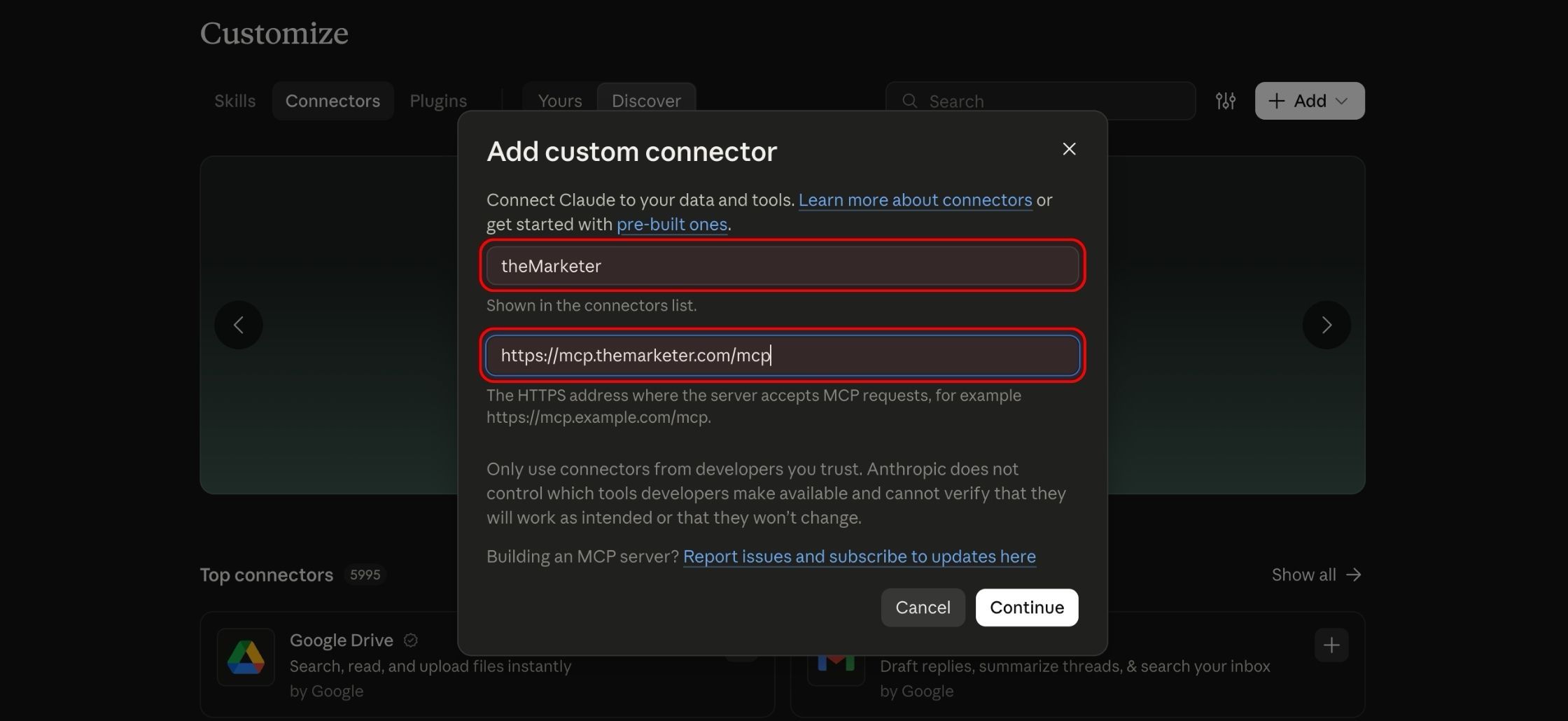
3. Enter the name and server URL.
In the name field, type ‘theMarketer’. In the ‘Remote MCP server URL’ field, paste: https://mcp.themarketer.com/mcp
Once you’ve entered both details, click ‘Continue’.
4. Complete the connection and sign in to theMarketer.
Review the detected authentication settings, then click ‘Continue’. Select ‘Sign in now’ and finish adding the connector.
Follow the connection prompts, making sure you sign in to the correct theMarketer account. Review the requested permissions before approving access.
5. Enable theMarketer in your conversation.
Open a chat, click the ‘+’ button, and select ‘Connectors’. Use the toggle next to theMarketer to enable it for that conversation.
Keep in mind that Claude’s Free plan allows one custom connector. If you use a Team or Enterprise account, your organization’s owner may need to add the connector before you can connect your account.
How to connect theMarketer to ChatGPT
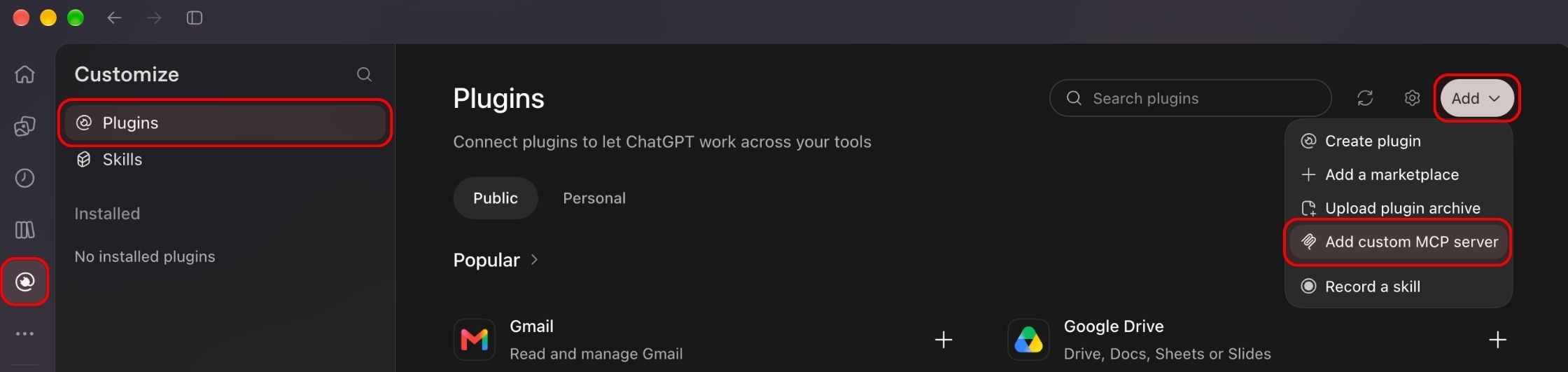
1. Access ChatGPT and open ‘Plugins’.
Log in to your account at chatgpt.com using your browser.
Keep in mind that this connection requires a paid ChatGPT plan. If you use a company or school account, your administrator may need to allow custom MCP connections.
2. Click the ‘+’ button and select ‘Add custom MCP server’.
This opens the setup screen where you can enter the details for your theMarketer connection.
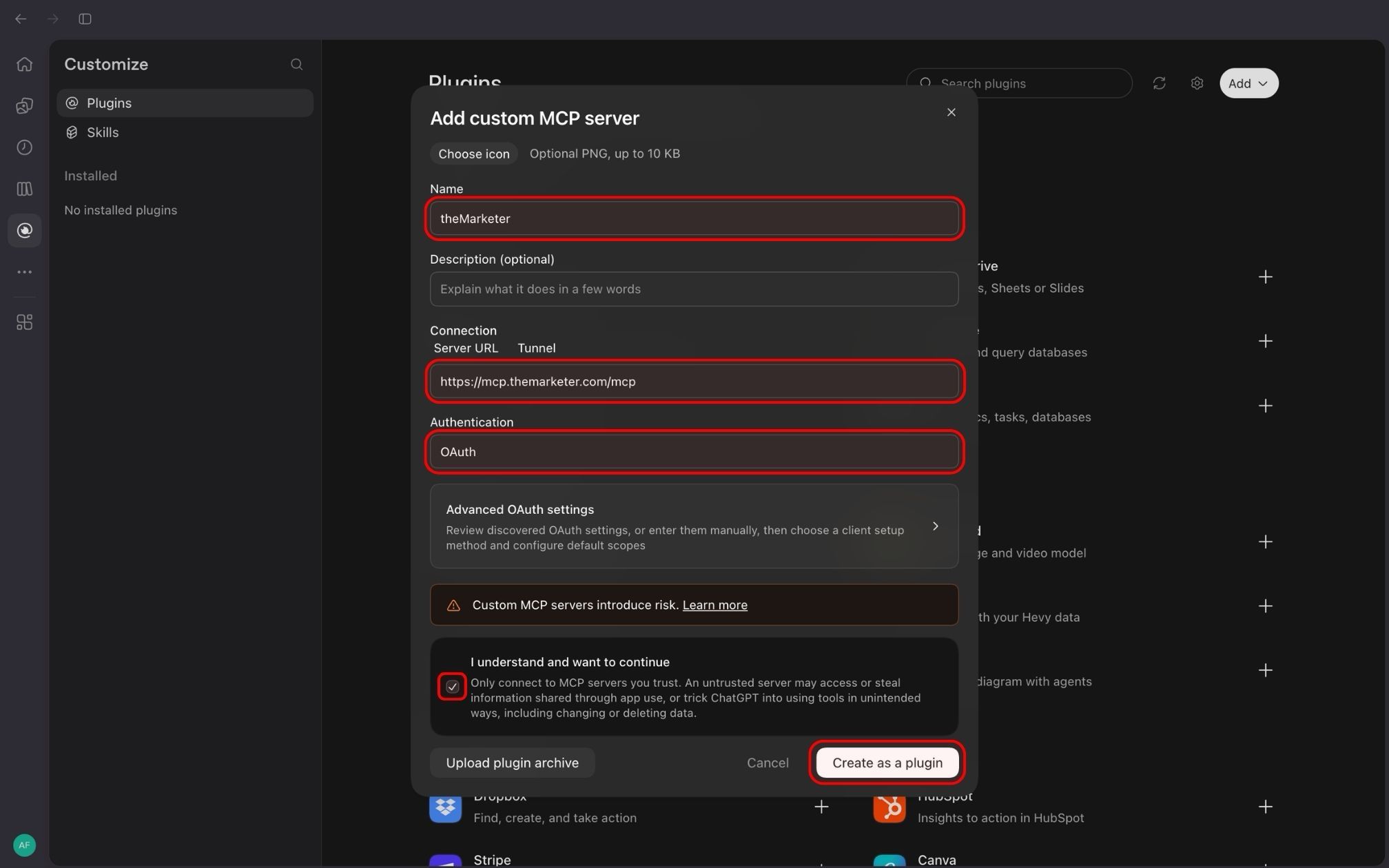
3. Enter the connection details.
In the name field, type ‘theMarketer’.
Under ‘Connection’, paste the following address into the ‘Server URL’ field: https://mcp.themarketer.com/mcp
Select OAuth under ‘Authentication’.
4. Create the plugin and authorize the connection.
Read the access warning and, if you agree, select ‘I understand and want to continue’. Then click ‘Create as a plugin’.
Follow the sign-in prompts, making sure you use the correct theMarketer account, and approve the requested access.
5. Install theMarketer plugin and open a conversation.
Find theMarketer in your personal plugins, open it, and click the ‘+’ button to install it.
Return to ChatGPT, switch to ‘Work’, and start a new chat. Type @ in the message box and select theMarketer to use the connection in your conversation.
How to connect theMarketer to OpenClaw
If you already have OpenClaw installed, you can add the connection using the commands below.
Open your terminal, the application where you can enter commands on your computer. Copy and paste each command, then press Enter to run it.
1. Add theMarketer server.
Paste and run:
openclaw mcp add themarketer \
  --url https://mcp.themarketer.com/mcp \
  --transport streamable-http \
  --auth oauth \
  --oauth-scope "read write"
This adds the connection using ‘Streamable HTTP’, the method used to communicate with the server. The ‘read write’ permissions allow the assistant to retrieve information and make changes.
2. Sign in to your theMarketer account.
Paste and run:
openclaw mcp login themarketer
Follow the link or browser window that opens to sign in and approve access. Make sure you are connecting the correct theMarketer account.
3. Verify the connection.
Paste and run:
openclaw mcp doctor themarketer --probe
This checks whether OpenClaw can connect to the server and access its tools, meaning the actions available to your assistant.
Once the check succeeds, open an OpenClaw conversation and ask it to use theMarketer.
How to connect theMarketer to another AI tool
Other AI tools that support MCP can also connect to theMarketer. The setup process depends on the tool you use, but the connection details remain the same.
1. Open your tool’s connection settings.
Look for an option to add a remote MCP server or a custom connector.
2. Enter theMarketer’s connection details.
Use the following information:
- Name: theMarketer
- Server URL: https://mcp.themarketer.com/mcp
- Transport, if requested: Streamable HTTP
- Authentication: OAuth
Save the connection, then follow the prompts to sign in to your theMarketer account and approve access.
3. If your tool requires a configuration file, add the connection manually.
A configuration file stores the settings your tool uses. For tools that accept an mcpServers section, you can use the example below.
This method uses mcp-remote, a helper that connects tools supporting local MCP servers to an online server. You will need Node.js 18 or later, the software that runs this helper.
{
  "mcpServers": {
    "theMarketer": {
      "command": "npx",
      "args": [
        "-y",
        "mcp-remote",
        "https://mcp.themarketer.com/mcp",
        "--static-oauth-client-metadata",
        "{\"scope\":\"read write\"}"
      ]
    }
  }
}
If the file already contains other connections, keep them and add theMarketer alongside them. Save your changes, restart or reload the tool, and complete the sign-in process.
Keep in mind that different tools use different configuration formats. Check your tool’s instructions before adding this example.
Start using your connection
Once connected, you can ask your assistant to retrieve information from theMarketer using everyday language. For example:
- “Show me the results of my latest email campaign.”
- “How has my subscriber count changed over the last 30 days?”
- “Show me my available audience segments.”
If your theMarketer account includes several websites, mention the website you would like the assistant to use.
The assistant can access information and perform actions within the websites your theMarketer user can access. Some requests only retrieve information, while others create or change records. Make sure you review any proposed changes before approving them.
If your assistant asks you to authenticate again, reconnect and sign in using your theMarketer account. If the sign-in window does not appear, allow pop-ups for your assistant’s website and try again.
You can also remove the connection from your assistant’s settings whenever you would like to stop using it.
And... you’re done!
You’re now ready to bring your theMarketer information into your AI conversations, making it easier to understand your results, explore your audience, and plan your next marketing steps.
If you need further guidance, our team is always happy to assist you. Contact support@themarketer.com and let us know which assistant you are using and where you need help.
Related articles
STILL HAVE QUESTIONS?